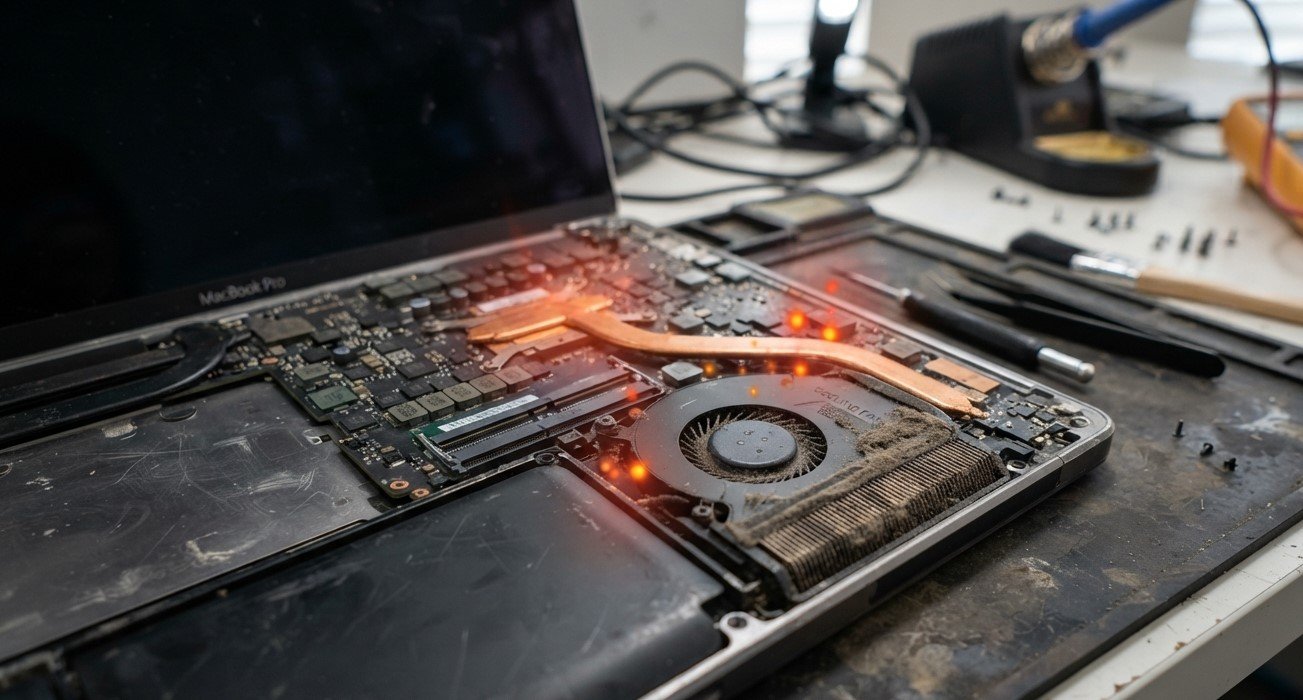
When a laptop refuses to wake up from sleep mode, it can interrupt your work and leave you wondering whether the device has developed a serious problem. The issue may involve power settings, outdated drivers, a blank display, or connected accessories. If basic troubleshooting does not help, Computer Repair Albany services can help identify the underlying cause. For convenient assistance, in-home computer repair Albany and on-site computer repair Albany can provide practical solutions for persistent laptop sleep and startup problems.
Table of Contents
- Check the Power Supply and Battery
- Try Keyboard and Display Shortcuts
- Disconnect External Devices
- Update Drivers and Windows
- Review Power Settings
- When to Seek Professional Help
- Frequently Asked Questions
- Call to Action
1. Check the Power Supply and Battery
First, connect your laptop to its charger and check whether the charging indicator or power light turns on. A low battery may prevent the laptop from resuming normally.
Wait a few minutes, then press the power button once. Avoid repeatedly pressing it, as this can make troubleshooting more confusing.
If the laptop shows no signs of power, test a compatible charger and inspect the charging connection for visible damage. Do not use a damaged charger or cable.
2. Try Keyboard and Display Shortcuts
Sometimes the laptop is running, but the screen remains black.
Try pressing a key on the keyboard, moving the touchpad, or opening the laptop lid. Depending on the model, you may need to press the power button briefly to wake the device. Check the manufacturer’s instructions because wake methods vary between laptops. <Cite refs={[“turn563269search1”]}/>
If the screen remains blank on a Windows laptop, press Windows + Ctrl + Shift + B to reset the graphics driver. The screen may flicker or produce a sound if the shortcut works. <Cite refs={[“turn563269search3”]}/>
3. Disconnect External Devices
Connected accessories can sometimes interfere with sleep and wake behavior.
Disconnect external monitors, USB hubs, storage drives, printers, and other accessories. Then try waking the laptop again.
If it works, reconnect each device individually to identify whether a particular accessory, cable, or connection is causing the problem.
4. Update Drivers and Windows
Outdated or corrupted graphics and chipset drivers can affect how a laptop enters or exits sleep mode.
Once your laptop is working again:
- Open Settings > Windows Update and install available updates.
- Open Device Manager and check for driver issues.
- Visit your laptop manufacturer’s official website for compatible graphics and chipset drivers.
Restart the laptop and test sleep mode again. Avoid installing drivers from unfamiliar websites.
5. Review Power Settings
Incorrect power settings may contribute to wake-up problems.
Open Control Panel, select Hardware and Sound > Power Options, and review your current power plan. Check the settings for when the laptop lid closes and when the power button is pressed.
If the issue continues, consider disabling Fast Startup through the available power-button settings, if your Windows version provides that option. Save your changes and restart the laptop before testing again. These steps are among the troubleshooting options recommended by computer manufacturers. <Cite refs={[“turn563269search4″,”turn563269search11”]}/>
6. When to Seek Professional Help
If your laptop repeatedly freezes after sleep, shows a persistent black screen, overheats, or fails to respond even when connected to power, the problem may involve hardware or deeper software faults.
A technician can examine the power system, memory, graphics hardware, drivers, and firmware settings. Avoid repeatedly forcing the laptop to shut down because unsaved work may be lost.
7. Frequently Asked Questions
Why won’t my laptop wake up when I press a key?
The keyboard may not be configured to wake the laptop, or Windows may have encountered a driver or power-management issue. Try the power button and check the manufacturer’s recommended settings.
Why does my laptop turn on but show a black screen?
A graphics driver problem, display issue, or stalled Windows process may prevent the screen from displaying normally. Try the graphics reset shortcut and check external display connections.
Is it safe to force shut down a frozen laptop?
A forced shutdown may be necessary if the laptop is completely unresponsive, but unsaved work can be lost. Use it only after normal wake-up methods fail.
Can outdated drivers cause sleep problems?
Yes. Incompatible or corrupted graphics and chipset drivers can interfere with sleep and wake functions.
8. Call to Action: Get Your Laptop Working Again
A laptop that will not wake from sleep mode may need only a simple settings adjustment, but recurring problems deserve proper attention. Start with the power supply, display shortcuts, connected devices, and Windows updates. If the issue persists, Computer Repair Albany professionals can diagnose the problem and recommend an appropriate repair. Whether you prefer in-home computer repair Albany or on-site computer repair Albany, expert assistance can help restore reliable laptop performance and reduce further interruptions.