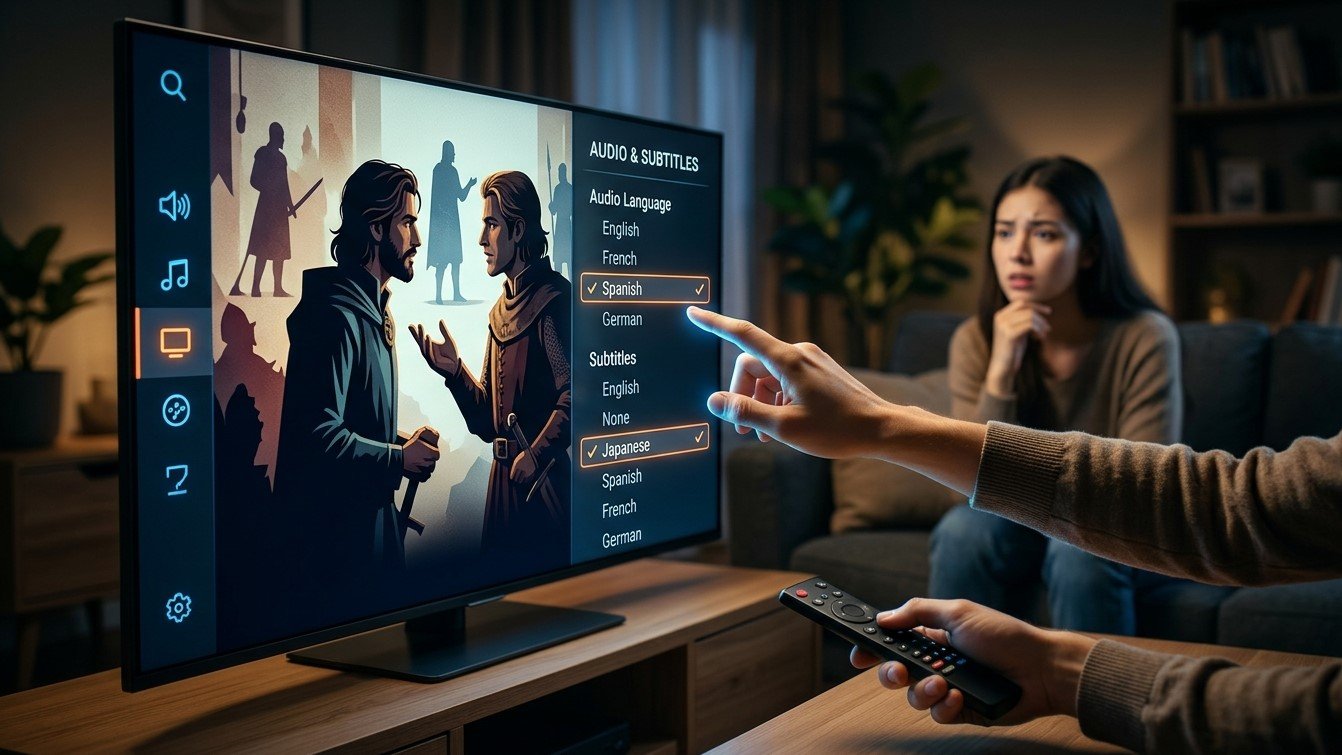
You open a channel and hear Tamil commentary when you wanted Hindi. Or subtitles pop up on a show you understand perfectly, then vanish on the one you needed them for. Wrong default tracks are among the most common small annoyances in streaming. They usually come from a mix of how the stream is labeled and how your app decides which track to pick, not from a fault in your subscription. In this guide, we’ll explain how those decisions are made, why they go wrong, and how to fix them for IPTV India on your Indian IPTV Box.
Menu names and options vary by app, device, and software version.
Table of Contents
- How an App Chooses a Track
- Cause 1: The Stream Itself Sets the Wrong Default
- Cause 2: Missing or Odd Language Labels
- Cause 3: Your Preferences Conflict
- Cause 4: The App Doesn’t Remember Your Choice
- Cause 5: Two Languages on One Stereo Track
- Cause 6: Accessibility and Forced Subtitles
- Step-by-Step Fixes
- What to Tell Support
- FAQs
How an App Chooses a Track
A stream can carry several audio tracks and several subtitle tracks. When playback starts, the app picks one using rules, roughly in this order:
- Your saved choice for that channel or show, if the app remembers one
- Your preferred languages set in the app
- Your device’s system language or accessibility settings
- The stream’s default flag, which marks a track as the one to play
- The first track in the list, if nothing else decides
When any step has bad information, you get the wrong result.
Cause 1: The Stream Itself Sets the Wrong Default
The broadcaster or provider decides which track carries the “default” flag and in what order tracks appear. If the default points to the wrong language, or the order changes after a provider update, your app plays it. This is common on channels that carry several regional feeds in one stream, which is also why the same match can have commentary in different languages, as our guide on cricket commentary languages explains.
If the wrong track appears on every device and every app, the stream is the likely cause.
Cause 2: Missing or Odd Language Labels
Apps match your preference against language labels in the stream. Problems arise when:
- A track has no language label, or is marked “undetermined”
- The label uses an unusual or inconsistent code, or the wrong language
- Two tracks share a label, such as two tracks both tagged Hindi, so the app can’t tell them apart
- Track names are generic, like “Audio 1” and “Audio 2”
- Some regional languages are labeled inconsistently, so a preference may not match
Our guide on garbled channel names describes related text issues. If tracks show vague names, the labeling is probably the problem, and only your provider can fix it at the source.
Cause 3: Your Preferences Conflict
Several settings can disagree:
- The app’s preferred audio and subtitle languages
- The device’s system language
- A separate accessibility captions setting on the TV or box
- An old profile or saved preference from before a reset
If your app prefers Hindi but your device language is set to something else, the app may use whichever rule it checks first. Aligning them removes the conflict.
Cause 4: The App Doesn’t Remember Your Choice
Many apps pick a track fresh each time unless a remember option is turned on. Others save your choice only for that session, or per channel, or only for on-demand titles. After an update, a cache clear, or a reset, saved choices may disappear. Our guide on clearing cache versus data explains what each action wipes.
Cause 5: Two Languages on One Stereo Track
Some channels put one language on the left channel and another on the right of a single stereo audio track. This is sometimes called dual mono. In stereo, you hear both languages at once. In some setups, one language comes from each speaker.
If you hear two voices at once, or one language from only one side, check the player for an audio channel option such as left, right, or stereo, and pick the side you want. Whether an app offers it varies.
Cause 6: Accessibility and Forced Subtitles
Subtitles that appear unprompted often come from:
- A system-wide captions setting turned on in accessibility options
- A “show subtitles when audio isn’t in my language” rule, which triggers when the default audio doesn’t match your preference
- Forced subtitles, which show only for foreign-language dialogue or on-screen text
- A previously selected subtitle track carried over to new content
Our guides on captions and on subtitle and language options cover what’s available and what isn’t.
Step-by-Step Fixes
- Pick the track manually. Open the player’s menu during playback, find Audio or Subtitles, and choose the one you want
- Set preferred languages in your app, if it has the option, for both audio and subtitles
- Check your device’s language and accessibility settings, and turn off system captions if you don’t want them
- Turn off automatic subtitle rules, such as showing subtitles based on audio language, if the option exists
- Look for a “remember selection” setting and turn it on
- Check the audio channel option for dual-mono channels
- Restart the app and the box
- Clear the app’s cache, then reload, if saved choices seem stuck or corrupted
- Update the app and firmware
- Try another supported app, since players apply rules differently
- Test another device, to see whether the stream or your setup is responsible
- Look for a channel variant in the language you want, since many broadcasters offer separate regional channels, as in our guide on dubbed versions
- Ask your provider if the labels look wrong or the default is consistently incorrect
Change one thing at a time so you can tell what helped.
What to Tell Support
Include the channel name, which language plays by default and which you expected, the track names the player shows, whether it happens on other devices and apps, your app’s language settings, when it started, and anything that changed beforehand, such as an update. A screenshot of the track menu is especially useful.
FAQs
1. Why does the language change between channels?
Each channel’s stream sets its own default and track order, and your app may handle them differently. Setting preferred languages can help, but a mislabeled stream can still override it.
2. Why do subtitles turn on by themselves?
Possible causes include a system captions setting, an automatic subtitle rule, forced subtitles, or a track carried over from earlier playback.
3. Can I make the app remember my choice?
If your app offers a remember or default-track setting, turn it on. Not every app does, and a cache clear can erase saved choices.
4. Why do I hear two languages at once?
Some channels put two languages on one stereo track. Look for a left, right, or stereo option in the player.
5. Is this a problem with my Indian IPTV Box?
Usually not. It’s more often the stream’s labeling or your app’s settings. Test another device and app to find out.
Hear and Read It Your Way
Most wrong-track problems come down to labels, conflicting settings, or an app that forgets, and each has a fix. Pair a dependable IPTV India subscription with a well-configured Indian IPTV Box, set your language preferences once, and enjoy every channel the way you like it. Explore our IPTV plans today and watch in the language you love.