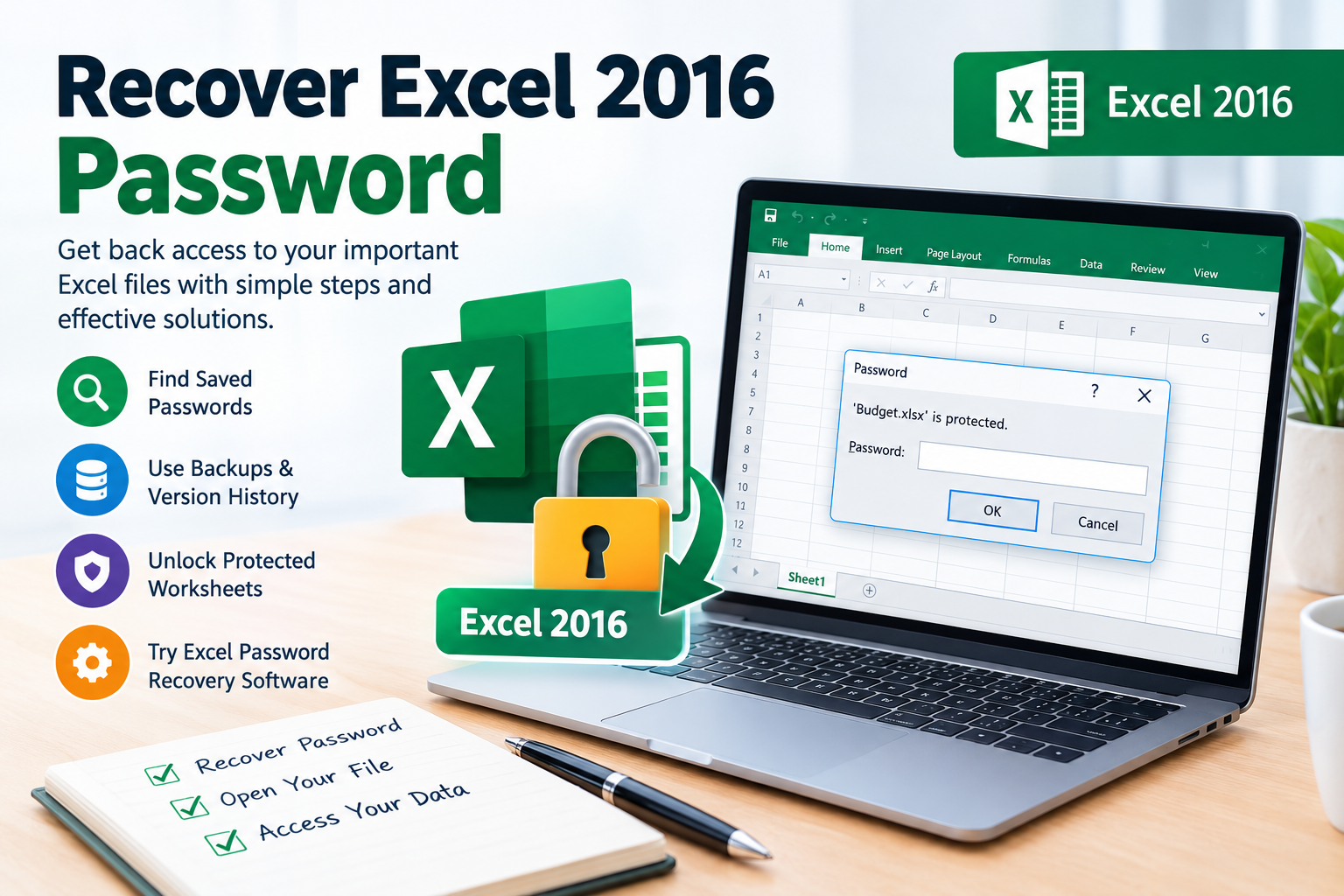
Have you forgotten the password to an old Excel XLS file containing important business records, financial reports, or customer information? Losing access to an Excel spreadsheet can interrupt your work, especially when the file contains data that cannot easily be recreated.
The good news is that several recovery options are available, depending on how the XLS file was protected. You can check for saved passwords, search for backup copies, use Excel’s built-in protection options, or evaluate dedicated Excel Password Recovery Software.
In this guide, you will learn how to recover a password from an Excel XLS file, understand the differences between password protection types, and choose a suitable recovery method.
What Is an Excel XLS File?
XLS is the legacy Microsoft Excel workbook format used primarily by Excel 97–2003. It can contain worksheets, formulas, charts, tables, and other spreadsheet data.
An XLS file may be protected in different ways. Identifying the type of protection is essential because the recovery method depends on whether the password prevents you from opening the file or simply restricts editing.
Common types of Excel XLS protection
1. Password to open: The file requires a password before Excel can display its contents. Depending on the protection mechanism, the workbook may use encryption.
2. Worksheet protection: You can open the workbook, but certain cells or worksheet features cannot be edited without the appropriate password.
3. Workbook structure protection: The password restricts changes such as adding, deleting, moving, or renaming worksheets.
These protection types are not interchangeable. A tool that removes worksheet protection may not be able to recover the password required to open an encrypted XLS file.
Method 1: Check Saved Passwords and Backup Copies
Before trying advanced recovery methods, look for an existing copy of the password or an accessible version of the spreadsheet.
Follow these steps:
- Check your password manager for a saved Excel password.
- Search your secure notes or relevant emails for the password.
- Ask the original file creator or authorized owner whether they can provide access.
- Look for older copies of the XLS file on your computer or approved backup storage.
- Check cloud storage version history if the file was stored in a supported service.
- If you find an unprotected or accessible version, open it and verify that it contains the required data.
This approach is often the simplest solution because it avoids unnecessary recovery attempts.
Important: Keep the original XLS file unchanged. Create a backup copy before testing any recovery software or other recovery procedure.
Method 2: Unprotect an Excel Worksheet
If the XLS file opens successfully but you cannot edit a protected worksheet, you may not need to recover an encrypted file-opening password.
Try Excel’s built-in option first.
- Open the XLS file in a compatible version of Microsoft Excel.
- Select the protected worksheet.
- Open the Review tab.
- Select Unprotect Sheet, if available.
- Enter the correct password when prompted.
If you do not know the password, contact the file owner or locate an authorized editable copy.
Worksheet protection is different from file encryption. It restricts editing rather than necessarily encrypting the workbook’s contents. Therefore, the appropriate solution depends on the specific protection applied.
Method 3: Restore an Earlier Version of the XLS File
If you previously saved an accessible version of the spreadsheet, restoring that version may help you recover the data without recovering the password.
For a file stored in OneDrive or SharePoint:
- Locate the XLS file in its storage location.
- Open the available version history.
- Identify an earlier version that predates the password problem.
- Download or restore a separate copy, where possible.
- Open the recovered copy and verify its contents.
For files stored locally, check your configured backup software or Windows backup history.
Version history is useful only if an appropriate earlier version exists. It does not automatically reveal the password used to encrypt the current file.
Method 4: Use Excel XLS Password Recovery Software
If you cannot locate the password or an accessible backup, dedicated Excel Password Recovery Software may help with supported protection types.
Such tools may use password-search techniques to test possible passwords against an encrypted workbook. Their capabilities depend on the XLS file’s protection mechanism, password complexity, and the software’s supported features.
Step-by-step recovery workflow
Step 1: Select a compatible recovery tool
Choose software that explicitly supports legacy XLS files and the particular type of password protection affecting your workbook.
Step 2: Prepare a copy of the file
Keep the original spreadsheet safe and work with a duplicate whenever possible.
Step 3: Load the XLS file
Launch the recovery tool and use its file-selection option to locate your copied XLS file.
Step 4: Select a suitable recovery method
Depending on the tool, available options may include dictionary-based, brute-force, or pattern-based password searching.
Step 5: Configure the search
If you remember details about the password, such as its approximate length or known characters, configure the search accordingly when the software supports these options.
Step 6: Start the recovery process
Allow the software to test candidate passwords. Processing time varies considerably with the password’s length, complexity, and the available computing resources.
Step 7: Verify access
If the password is recovered, open the original or copied workbook in Excel and confirm that the expected worksheets, formulas, and data are accessible.
Not every file can be recovered successfully. Strong encryption and complex passwords may make password searching impractical, even with specialized software.
Method 5: Understand Dictionary and Brute-Force Recovery
Two common techniques used by password recovery tools are dictionary attacks and brute-force attacks.
Dictionary-based recovery
A dictionary attack tests candidate passwords from a list of words and common password patterns. It may be useful when the original password was based on familiar words or predictable combinations.
Brute-force recovery
A brute-force attack systematically tests combinations from a selected character set. The search can become substantially more demanding as password length and character variety increase.
For example, a short numeric password has fewer possible combinations than a long password containing uppercase letters, lowercase letters, numbers, and symbols.
Some tools also provide mask-based or hybrid approaches that use known password patterns to narrow the search.
These techniques do not guarantee recovery. They are most relevant when the software supports the XLS file’s specific encryption mechanism and the password can feasibly be found within the search space.
Common Problems When Recovering an XLS Password
The recovery tool cannot open the file. Confirm that the file is not corrupted and that the software supports its format and protection type.
The password search takes too long. A complex password may require an enormous number of attempts. If possible, narrow the search using information you legitimately remember.
The tool does not recover a password. The password may fall outside the configured search patterns, or the software may not support the file’s protection mechanism.
The workbook opens but remains read-only or protected. Check whether worksheet protection, workbook structure restrictions, or file permissions are responsible.
The spreadsheet contains confidential data. Prefer reputable software with clear privacy policies and local processing where appropriate. Avoid uploading sensitive spreadsheets to unknown online services.
How to Choose the Best Excel XLS Password Recovery Tool
Before purchasing software, compare the following features:
- XLS compatibility: Confirm support for the legacy Excel 97–2003 format.
- Protection-type support: Verify that the software handles your particular password problem.
- Recovery methods: Check which search strategies and customization options are available.
- Ease of use: Look for clear instructions, progress reporting, and understandable results.
- Privacy: Review how the vendor handles files and recovered passwords.
- Trial availability: Evaluate a free trial, if available, before purchasing.
- Transparent limitations: Check whether the vendor explains compatibility restrictions and realistic recovery expectations.
Choose a product based on verified features rather than promises of guaranteed password recovery.
Frequently Asked Questions
Can I recover a forgotten password from an XLS file for free?
You can begin by checking saved passwords, backups, and accessible earlier versions. Free tools may help with certain protection types, but recovery of an encrypted workbook may require specialized software and may not always be feasible.
Can I recover an Excel XLS password without losing data?
Preserve the original file and test recovery methods on a copy. A successful recovery can restore access to the existing workbook, but no method can guarantee success for every file.
Is XLS different from XLSX for password recovery?
Yes. XLS is the older Excel 97–2003 format, while XLSX is the newer Office Open XML format. Their internal structures and supported encryption mechanisms can differ, so you should verify that a recovery tool supports your specific file format.
Can I remove a worksheet password without recovering the opening password?
These are different situations. If the workbook opens but a worksheet is protected, you are dealing with worksheet protection. If Excel requires a password before opening the file, you are dealing with file-opening protection.
How long does Excel XLS password recovery take?
The duration depends on the encryption mechanism, password length, character variety, and available computing power. Some recovery attempts may finish quickly, while others may be impractical.
Conclusion
Recovering a password from an Excel XLS file begins with identifying the type of protection applied to the workbook. Check password managers and backups first, explore Excel’s built-in options for worksheet protection, and consider dedicated recovery software when other methods are unavailable.
If you need a specialized solution, evaluate an Excel Password Recovery Tool that explicitly supports XLS files and your particular recovery scenario. Test its capabilities using a free trial, if available, and keep a backup of your original spreadsheet.
Ready to regain access to your Excel file? Explore a compatible Excel Password Recovery Software solution, verify its supported protection types, and review its trial and licensing terms before purchasing. Use recovery tools only on files you own or are authorized to access.