Table of Contents
- Introduction
- Common Signs of a Faulty Laptop Cooling Fan
- What Causes Laptop Cooling Fan Problems?
- How to Check Your Laptop’s Cooling System
- When Should You Seek Professional Repair?
- Frequently Asked Questions
- Call to Action
1. Introduction
A laptop’s cooling fan plays an important role in keeping internal components at safe operating temperatures. When the fan stops working correctly, your device may overheat, slow down, become unusually noisy, or shut down unexpectedly. Recognizing these warning signs early can help prevent further hardware damage. iPC Repair Houston helps customers address laptop and computer repair concerns, while cell phone repair Houston and tablet repair Houston services support customers with other electronic device issues. Understanding how to identify cooling fan problems can help you decide when basic troubleshooting is enough and when professional diagnosis is necessary.
2. Common Signs of a Faulty Laptop Cooling Fan
Unusual Fan Noise
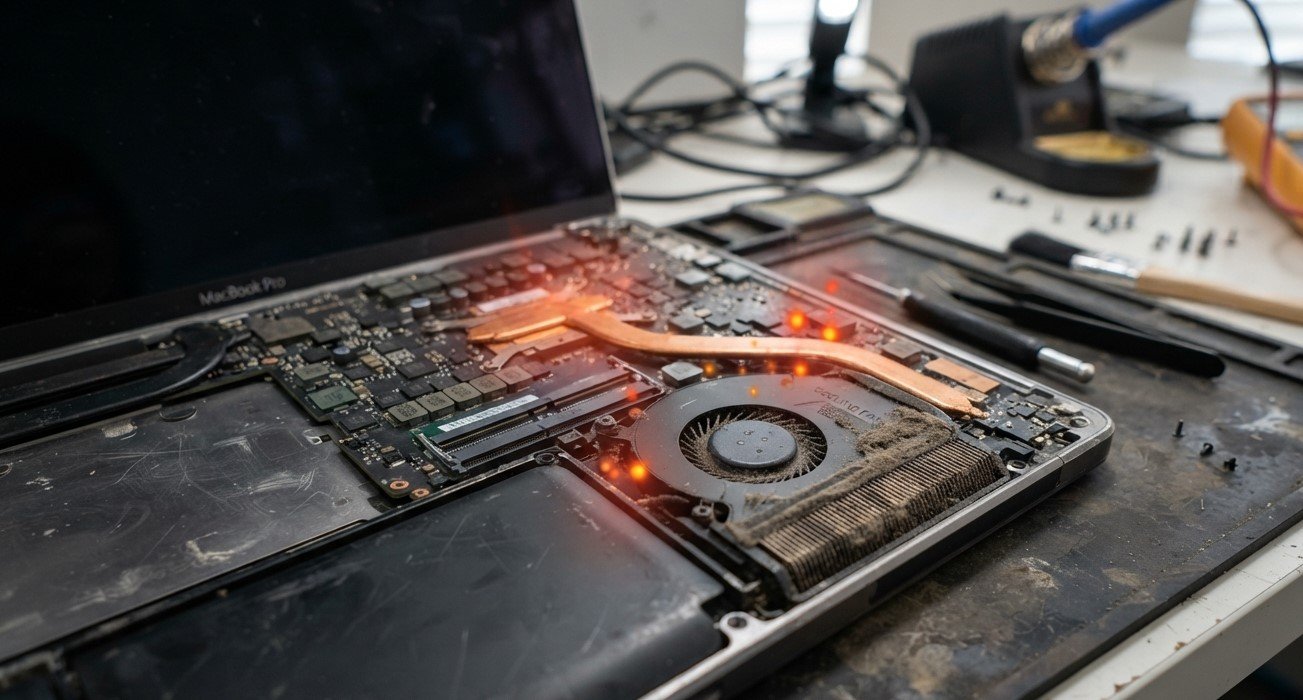
A healthy cooling fan typically produces a consistent, relatively quiet sound when needed. Grinding, rattling, clicking, or scraping noises may indicate worn bearings, loose components, or dust interfering with the fan blades.
If the noise continues or becomes louder, avoid ignoring it because the fan may not be circulating air effectively.
Excessive Heat
If your laptop becomes unusually hot during ordinary tasks, its cooling system may not be removing heat efficiently. Blocked vents, accumulated dust, or a damaged fan can restrict airflow and cause internal temperatures to rise.
High temperatures may affect performance and shorten the lifespan of internal components if the problem persists.
Unexpected Shutdowns
Some laptops automatically shut down when temperatures become dangerously high. If your device repeatedly switches off during demanding tasks, gaming, video editing, or even routine use, overheating could be a contributing factor.
However, battery faults, power problems, and other hardware issues can cause similar symptoms, so the fan should not automatically be assumed to be the only cause.
Reduced Performance
A laptop may become noticeably slower when its processor or graphics hardware gets too hot. This protective response, known as thermal throttling, reduces performance to help control temperature.
If applications take longer to respond or demanding tasks become increasingly difficult, overheating may be worth investigating.
Little or No Airflow
Depending on the laptop model and workload, you may feel warm air coming from its exhaust vents when the fan is operating. If the laptop is overheating but there is little airflow, the fan or ventilation system may need inspection.
Some laptops have fans that stop during light workloads, so a stationary fan does not automatically mean it is defective.
3. What Causes Laptop Cooling Fan Problems?
Several factors can affect cooling fan performance.
ASUS Global
+1
- Dust accumulation: Dust and debris can obstruct the fan blades and ventilation openings.
- Mechanical wear: Fan bearings or internal moving parts can deteriorate over time.
- Physical damage: Drops or impacts may damage the fan or its connections.
- Heavy workloads: Demanding applications can make the fan work harder and reveal existing cooling problems.
- Cooling system issues: Blocked heat sinks or degraded thermal material can contribute to overheating even when the fan still spins.
4. How to Check Your Laptop’s Cooling System
Before arranging a repair, try these basic checks:
- Place your laptop on a firm, flat surface rather than a bed or pillow.
- Ensure the ventilation openings are not blocked.
- Close unnecessary applications that may be using excessive processing power.
- Shut down the laptop and disconnect its charger before cleaning accessible exterior vents.
- If your laptop manufacturer provides a hardware diagnostic tool, use it to check fan operation.
Avoid inserting objects into the vents or opening the laptop without suitable experience. Do not continue using a device that is severely overheating or repeatedly shutting down.
ASUS Global
+1
5. When Should You Seek Professional Repair?
Professional inspection is advisable when the fan makes grinding noises, the laptop becomes excessively hot during light use, or overheating continues after basic troubleshooting. A technician can inspect the fan, heat sink, thermal material, and internal connections to identify the cause.
For customers needing computer repair assistance, iPC Repair Houston can help assess laptop hardware concerns. Customers looking for cell phone repair Houston or tablet repair Houston can also explore assistance for their other electronic devices.
6. Frequently Asked Questions
Can a laptop work if its cooling fan stops spinning?
Some laptops can operate temporarily, but a failed fan may cause overheating and performance problems. Stop demanding tasks and seek diagnosis if overheating occurs.
Is it normal for my laptop fan to run loudly?
Yes, during gaming, video editing, updates, or other demanding tasks. Persistent loud noise during light use may indicate a cooling problem.
Does every laptop have a cooling fan?
No. Some models use passive cooling and do not have a fan. Check your device specifications before diagnosing fan failure.
Can dust cause a laptop to overheat?
Yes. Dust can restrict airflow through vents and cooling fins, reducing heat dissipation.
7. Call to Action
A properly functioning cooling system helps protect your laptop from excessive heat, unexpected shutdowns, and performance loss. If you notice unusual fan noises, poor airflow, or persistent overheating, addressing the issue early may help prevent further hardware problems.
Contact iPC Repair Houston to discuss your laptop repair needs. Whether you need cooling system diagnostics, cell phone repair Houston, or tablet repair Houston, professional assistance can help you identify the right solution for your device.