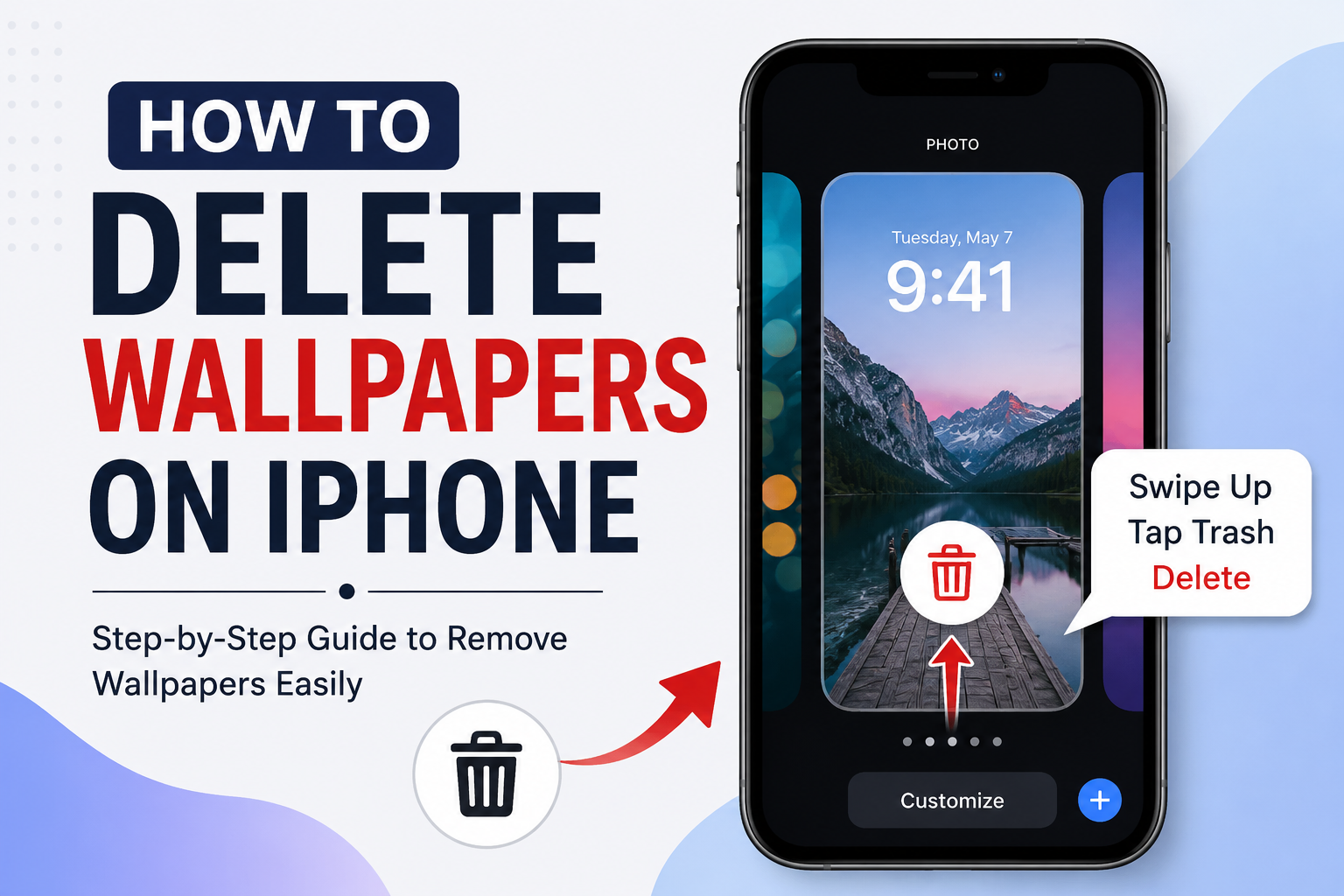
If you have too many old wallpapers saved on your iPhone, you may want to remove them and keep your Lock Screen collection organized. Fortunately, Apple makes it easy to delete wallpapers directly from the Lock Screen wallpaper gallery.
In this guide, you’ll learn how to delete wallpapers on iPhone step by step. We’ll also explain how to remove a wallpaper without deleting the photo from your Photos app, how to change wallpapers, and what to do if you cannot find the delete option.
Can You Delete Wallpapers on iPhone?
Yes, you can delete wallpapers from your iPhone’s Lock Screen wallpaper gallery. However, the exact process depends on your iOS version.
On newer versions of iOS, wallpapers are managed through the Lock Screen customization screen. You can press and hold the Lock Screen to view your saved wallpaper setups and delete the ones you no longer need.
It is important to understand that deleting a Lock Screen wallpaper does not necessarily delete the original image from your Photos app. The wallpaper setup and the photo stored in your photo library are separate.
How to Delete Wallpapers on iPhone
Follow these steps to remove an unwanted wallpaper from your iPhone.
Step 1: Wake Your iPhone
First, wake your iPhone and make sure you are on the Lock Screen.
You do not need to unlock the phone completely to access your saved Lock Screen wallpapers.
Step 2: Press and Hold the Lock Screen
Touch and hold an empty area of your iPhone’s Lock Screen.
After a moment, the wallpaper customization gallery should appear. You may need to use Face ID or enter your passcode before you can access the wallpaper gallery.
Step 3: Find the Wallpaper You Want to Remove
Swipe left or right through your saved Lock Screen wallpaper setups until you find the wallpaper you want to delete.
Take a moment to select the correct wallpaper, especially if you have several similar designs or photos saved.
Step 4: Swipe Up on the Wallpaper
Once you have selected the wallpaper you want to remove, swipe upward on the wallpaper preview.
A trash can icon should appear.
Step 5: Tap the Trash Icon
Tap the trash can icon and confirm that you want to delete the wallpaper.
The wallpaper setup will then be removed from your Lock Screen gallery.
Does Deleting an iPhone Wallpaper Delete the Photo?
Usually, removing a wallpaper setup does not mean that the original photo is automatically removed from your Photos library.
For example, suppose you used a picture of your pet as your Lock Screen wallpaper. If you delete that Lock Screen setup, the original picture can still remain in the Photos app.
This is useful if you want to remove an old wallpaper while keeping the picture for future use.
If your goal is to permanently remove the picture itself, you need to delete it separately from the Photos app.
How to Delete a Wallpaper Photo From the Photos App
If you no longer want the actual image on your iPhone, you can delete it from Photos.
- Open the Photos app.
- Find the picture you used as your wallpaper.
- Tap the photo to open it.
- Tap the Trash icon.
- Confirm that you want to delete the photo.
Depending on your iPhone and iOS version, deleted photos may remain in the Recently Deleted album for a period of time before being permanently removed.
Remember that deleting a photo from Photos is different from deleting a Lock Screen wallpaper setup.
How to Change Your iPhone Wallpaper
You do not always need to delete an old wallpaper. If you simply want a new background, you can change your wallpaper instead.
Press and hold the Lock Screen and tap Customize to modify the current setup, or use the option to add a new wallpaper.
You can choose from Apple’s available wallpaper options or select an image from your Photos library.
If you frequently change your wallpaper, you can keep several Lock Screen setups and switch between them instead of deleting each one.
How to Delete Multiple Wallpapers on iPhone
If you have several unwanted wallpaper setups, you need to remove them individually.
Press and hold the Lock Screen to open the wallpaper gallery. Then select an unwanted wallpaper, swipe upward on it, tap the trash icon, and confirm the deletion.
Repeat these steps for each wallpaper you want to remove.
At the moment, there isn’t a simple “select all” option that lets you delete every saved Lock Screen wallpaper at once. Removing them individually helps prevent you from accidentally deleting a wallpaper setup you still want to use.
Why Can’t I Delete My iPhone Wallpaper?
Sometimes users cannot find the trash icon or delete option. There are several possible reasons.
You Are Not in the Wallpaper Gallery
Simply opening Settings or the Photos app will not show the delete control for a saved Lock Screen setup.
Try pressing and holding the Lock Screen first.
Your iPhone Is Using an Older iOS Version
Wallpaper management has changed across iOS versions. If your iPhone is running an older version of iOS, the steps may look different from the ones described above.
Check your iPhone’s software version by going to:
Settings > General > Software Update
If an update is available and your iPhone supports it, updating iOS may provide newer wallpaper management features.
You Are Trying to Delete the Original Photo
If you are looking at a picture inside the Photos app, you will not see the same controls used to delete a Lock Screen wallpaper setup.
Decide whether you want to remove the wallpaper configuration or delete the actual image from your photo library.
How to Remove a Wallpaper Without Deleting Your Photo
If you want to keep the picture but no longer want it as a wallpaper, deleting the Lock Screen wallpaper setup is the best option.
Press and hold the Lock Screen, locate the wallpaper setup, swipe up, and tap the trash icon.
The original image can remain in your Photos library, allowing you to use it again later.
This is particularly useful for personal photos that you want to keep but no longer want to display on your Lock Screen.
Tips for Managing iPhone Wallpapers
Keeping your wallpaper gallery organized can make it easier to switch between different Lock Screens.
Here are a few simple tips:
- Delete wallpaper setups you no longer use.
- Keep important photos in your Photos library.
- Use different Lock Screens for different situations.
- Review your saved wallpapers occasionally.
- Avoid deleting a photo from Photos if you only want to remove it as a wallpaper.
- Update iOS when possible to access the latest wallpaper features.
Frequently Asked Questions
How do I delete wallpapers on iPhone?
Press and hold your Lock Screen to open the wallpaper gallery. Swipe to the wallpaper you want to remove, swipe upward on its preview, tap the trash icon, and confirm the deletion.
Can I delete a wallpaper without deleting the photo?
Yes. Removing a Lock Screen wallpaper setup is different from deleting the original image from your Photos library. You can remove the wallpaper setup while keeping the photo.
Why don’t I see the trash icon on my iPhone wallpaper?
Make sure you are viewing the Lock Screen wallpaper gallery and have selected the wallpaper you want to remove. Your iOS version may also affect the available options.
Can I delete all iPhone wallpapers at once?
There is no straightforward option to select and delete all saved Lock Screen wallpaper setups simultaneously. You generally need to remove unwanted setups individually.
Does deleting an iPhone wallpaper free up storage?
Deleting a wallpaper setup may remove that particular customization, but it does not necessarily remove the original photo from your Photos library. If storage is your concern, check your Photos app for large or unnecessary images.
Final Thoughts
Learning how to delete wallpapers on iPhone is simple once you know where the wallpaper gallery is located. Press and hold the Lock Screen, find the wallpaper setup you no longer want, swipe up on it, tap the trash icon, and confirm the deletion.
Most importantly, remember the difference between deleting a wallpaper setup and deleting the original photo. If you only want to clean up your Lock Screen gallery, you can remove the wallpaper without necessarily removing the image from your Photos library.
With a few quick steps, you can keep your iPhone’s Lock Screen organized and make room for the wallpapers you actually want to use.